Sharing lets you turn one of your saved bookmarks into a public reading link.
What sharing is for
Use sharing when you want to send someone a clean reading view of a bookmark without giving them access to the rest of your library. This works well for articles, PDFs, and other reading material you want to discuss, recommend, or hand off. You can choose to include highlights and annotations in the shared view if you want to.
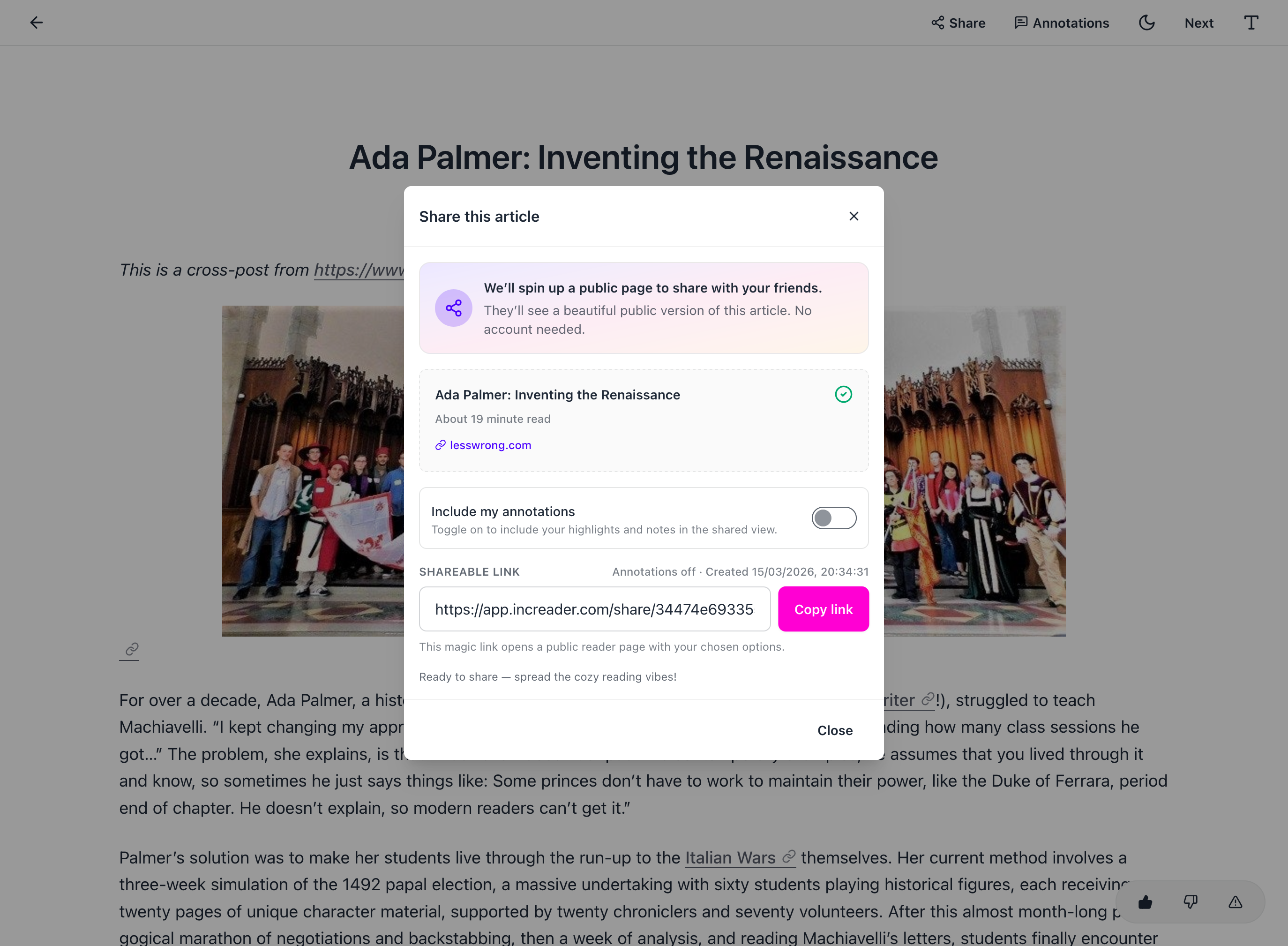
How to share a bookmark
- Open the bookmark you want to share.
- Press the
Sharebutton in the navigation bar. - Choose whether to include your annotations in the shared view.
- Press
Create share linkto generate a public link you can send to your friends.
What the recipient can do next
Once the recipient opens the shared link, they will see the bookmark in a public reader view. They can read the document, adjust font settings and theme (just like in the regular reader), and see the highlights and annotations if you included them.
If they are signed in, they can directly import the shared bookmark into their own library and continue working with it there.