If you already have hundreds of saved links in your browser, bulk import is the easiest way to move all of them into Increader.
Note: This feature is only available for users on the
Proplan of Increader. If you don’t need any of the other features of theProplan, consider upgrading for a single month, importing all your bookmarks, and moving immediately back to a cheaper or free plan.
Prepare your bookmark export
All major web browsers (Firefox, Chrome, Safari) allow you to export your bookmarks to HTML. Increader supports importing these .html files directly.
Import the bookmark file
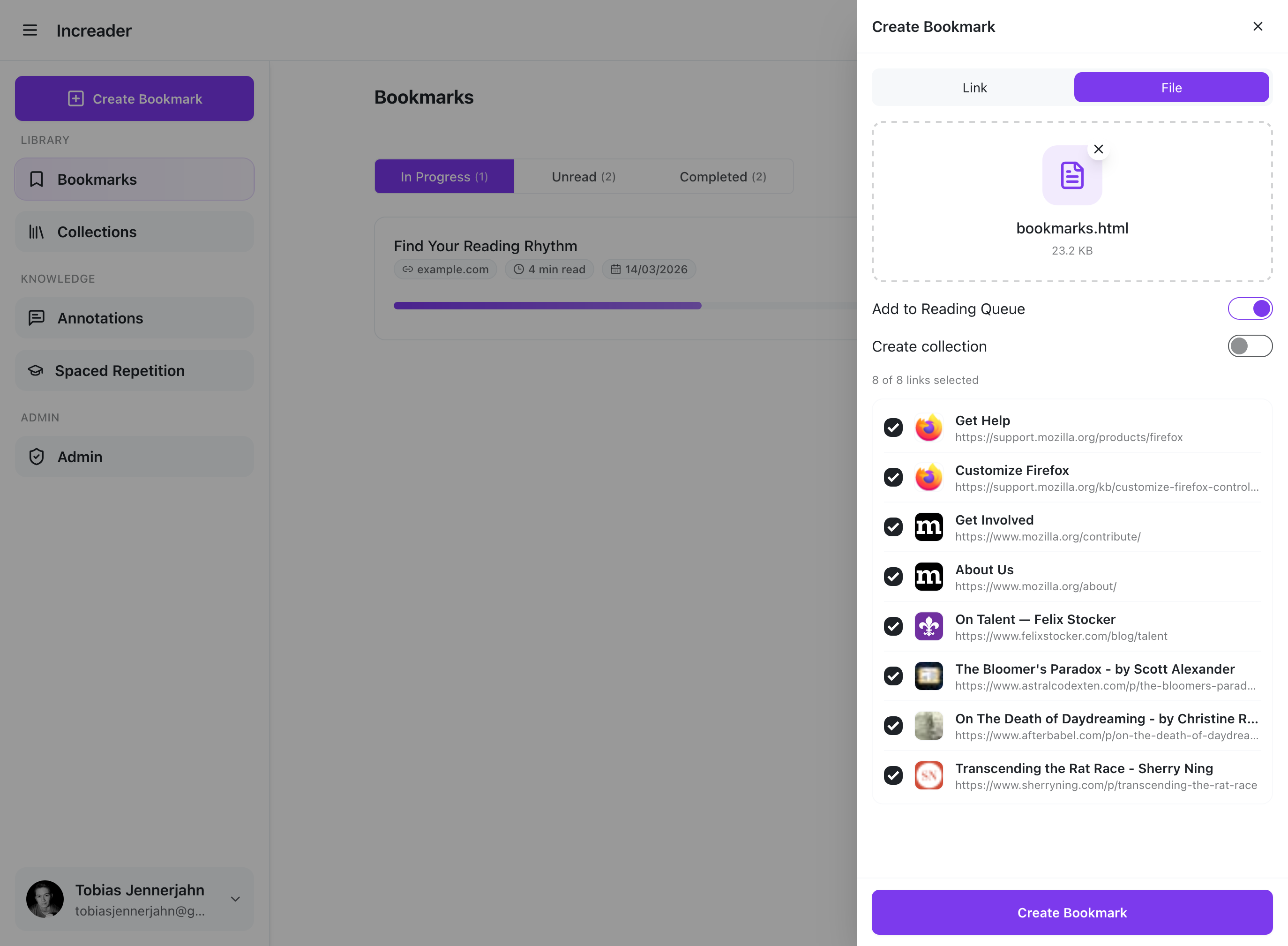
- Open the import flow.
- Choose the file import option.
- Upload the exported bookmark file.
- Go through the list of bookmarks and decide which ones to keep.
- Optionally create a new collection to which all your bookmarks will be added.
Tips for bulk import
Increader will try to import every bookmark from your file. If some of your bookmarks are not text content (interactive websites, videos, etc.), you may want to remove these before the import. You can either do this in your browser before exporting the file, or in Increader directly during the import. If you miss an entry and import something that’s not a good fit for Increader, then you can still delete it later.