The real value of annotations comes after the reading session, when you look back at what you marked and decide what’s worth remembering.
Review annotations deliberately
Increader keeps track of all your highlights and annotations in the annotations tab. You don’t need to review annotations directly after reading, and reviews don’t need to be connected to a specific bookmark.
It’s not required to review annotations regularly, but it will help if you build the habit of reviewing them.
When you are ready to review annotations, you can open the annotations tab and see all your highlights and annotations in one place.
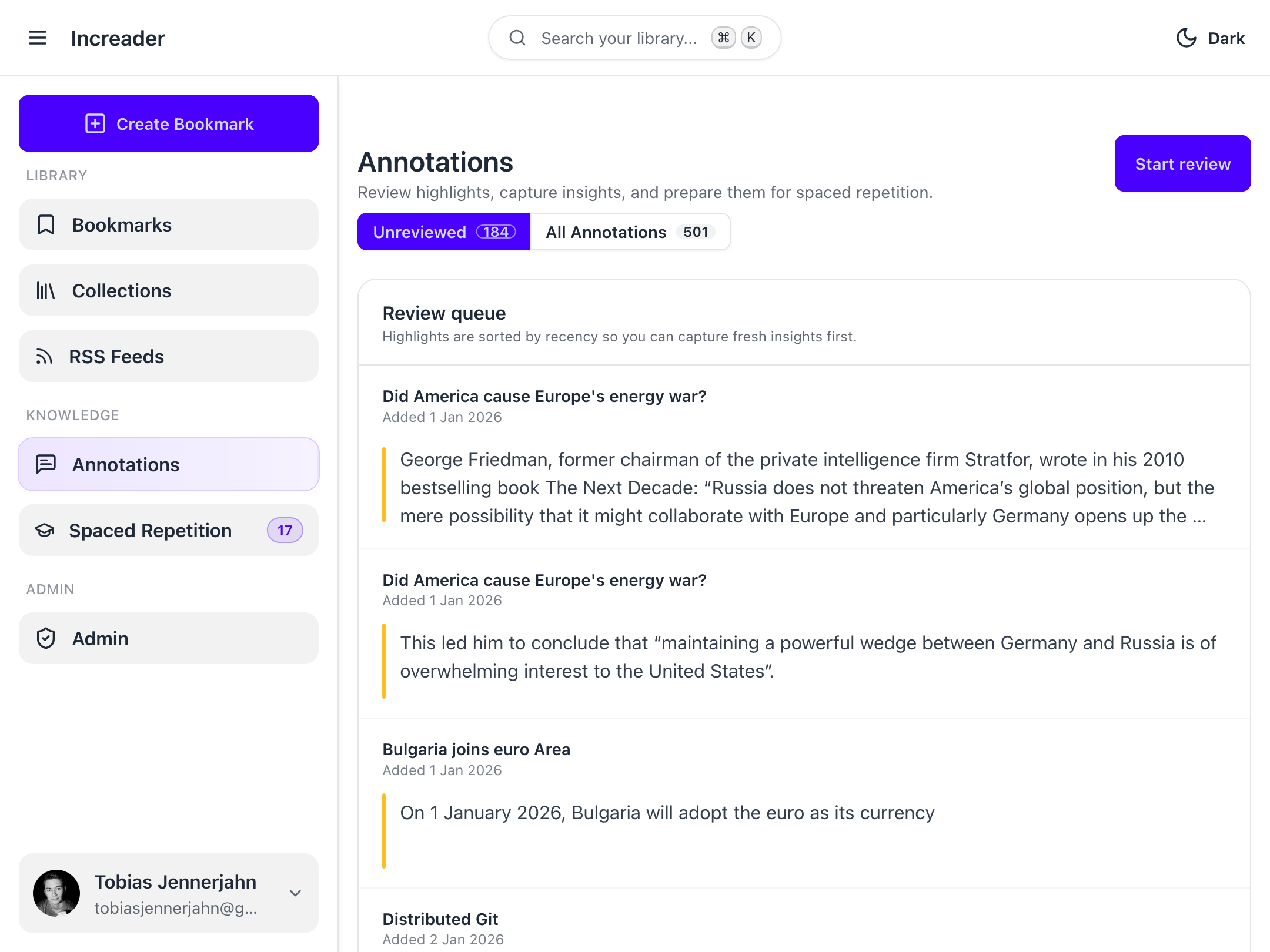
You can review individual annotations by clicking on them, but the easiest way to review annotations is to open the review queue by clicking on the Start Review button in the top right corner.
Reviewing an annotation
The review screen is split into two parts. At the top you will see the passage you highlighted and a text field with your annotation. At the bottom you will see the bookmark where you highlighted the passage. This is helpful for providing surrounding context for the annotation. You may scroll through the bookmark and reread however much of the bookmark you want to, to remind yourself of why you highlighted the passage.
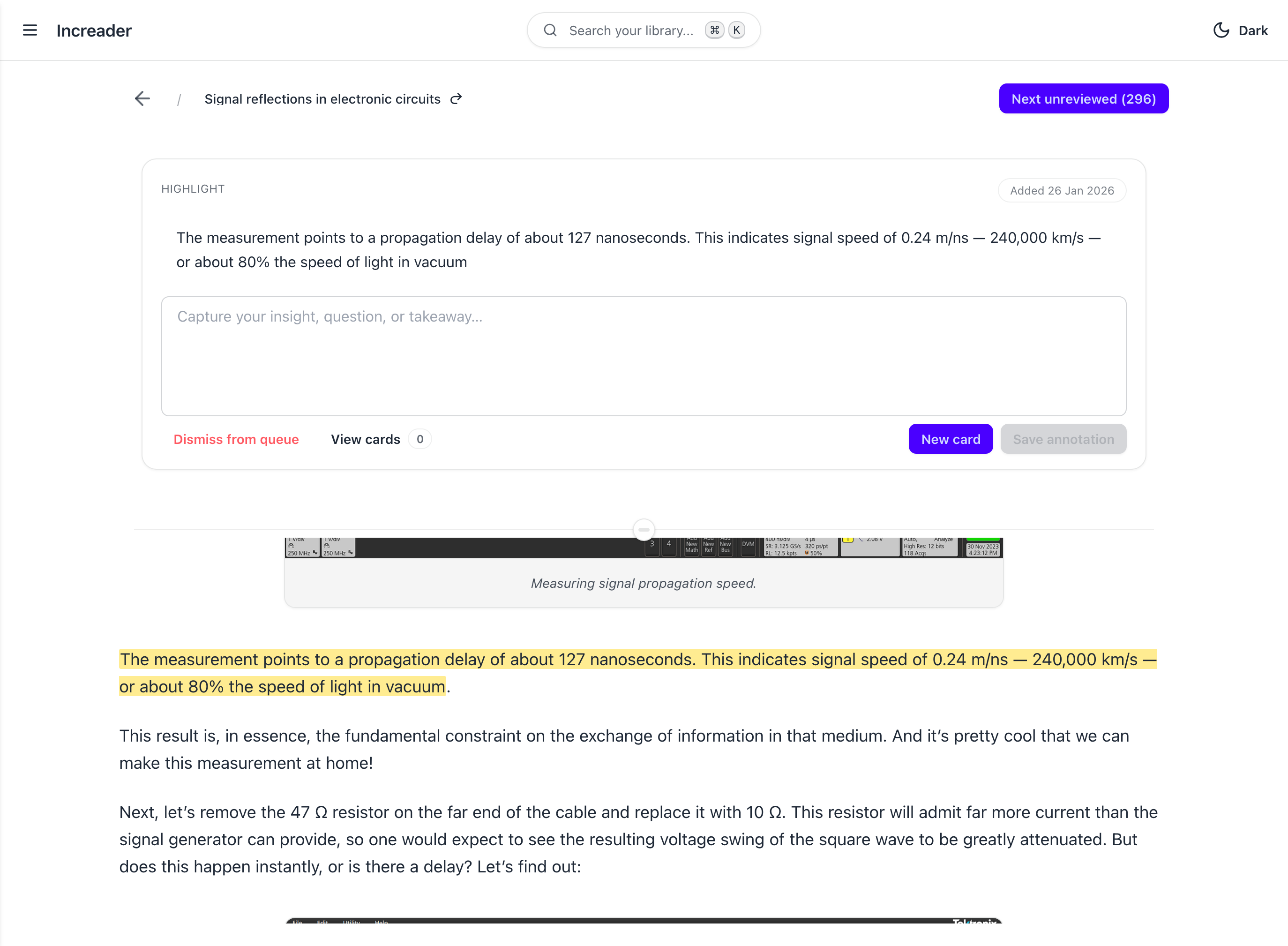
The middle of the screen contains a little divider. You can grab the divider and move it up and down to adjust the height of the split view.
Use the text field to add additional thoughts to the passage. This is supposed to be an iterative process. Add some thoughts to this annotation, or make changes to the existing notes, then move on to the next one. Eventually it will come back around, and you will have another opportunity to make changes.
The point is to sit with the passage and think about it, distilling its essential insight into a note step by step.
If you are happy with the changes, press the Next unreviewed button to move to the next annotation. This will put the current annotation back at the end of the queue.
Some annotations turn out to be less important than you thought. You can remove them from the review queue by pressing the Dismiss from queue button.
This won’t delete the annotation from the bookmark; it will just remove it from the review queue.
Eventually there will be nothing else for you to change about your note. That’s when you should turn it into a spaced repetition card. Sometimes it only takes a single review pass, but sometimes it takes many.
To turn your note into a spaced repetition card, press the New card button. This will open the spaced repetition card editor.
There are two types of cards currently supported in Increader: normal flashcards with a front and a back, as well as cloze deletions (also known as fill-in-the-blank cards).
Spaced repetition cards have full support for Markdown rendering, so you can include code blocks, quotes, tables, and everything else that Markdown supports in your cards.
Avoid over-carding
Some highlights should stay as highlights. Don’t try to force all annotations into cards. If you can’t think of a good way to turn a note into a card, just dismiss it after a few reviews.